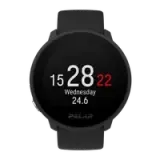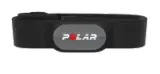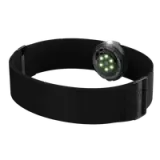
- Automatic age-based target zone – bpm / %
To help you train safely and effectively, the training computer determines your heart rate target zone limits automatically according to your age-based maximum heart rate (220 minus age). The limits are determined either in beats per minute (bpm), as a percentage (%) of your maximum heart rate, or as a heart rate reserve (% HRR). See also Maximal oxygen uptake (VO2max) and Manual target zone.
- Average and maximum heart rate of each lap
- Average and maximum heart rate of training
- Heart rate – bpm / %
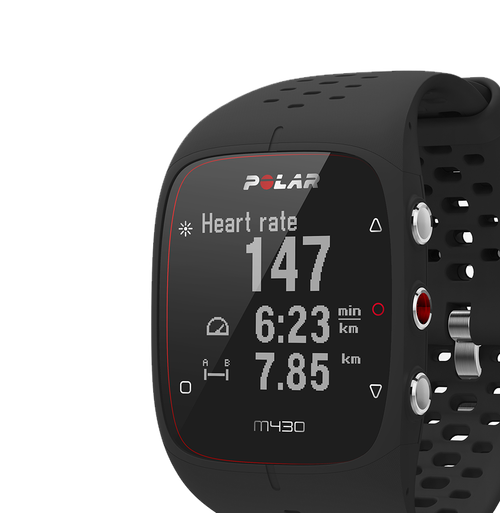
Heart rate is the measurement of the work your heart does. Heart rate can be expressed as the number of beats per minute or as percentage of your maximum heart rate. Heart rate can also be expressed as a percentage of your heart rate reserve, meaning the difference between your resting heart rate and maximum heart rate (HRR = HRmax - HRrest). In Polar software or during strength training, heart rate can be displayed as a graphical trend.
- HR-based target zones with visual and audible alarm
You can define your target zones for a training session based on heart rate to help define the right intensity. When you are out of the preset zones, the training computer will give a visual and audible alarm.
- HRmax (user set)
- Manual target zone – bpm / %
This feature enables you to define the target zone as you want and is suitable for your training. You can set the target zone for your training as beats per minute (bpm), as a percentage of your maximum heart rate, or as a percentage of your heart rate reserve (HRR%).
- Polar OwnCal® – calorie expenditure
Polar OwnCal calculates the number of kilocalories expended during training. This feature allows you to follow the kilocalories expended during one training session and cumulative kilocalories expended during several training sessions. Some Polar products also estimate the fat-burning percentage (fat% on display), that is, kilocalories expended from fat during a workout which is expressed as a percentage of the total kilocalories burned.
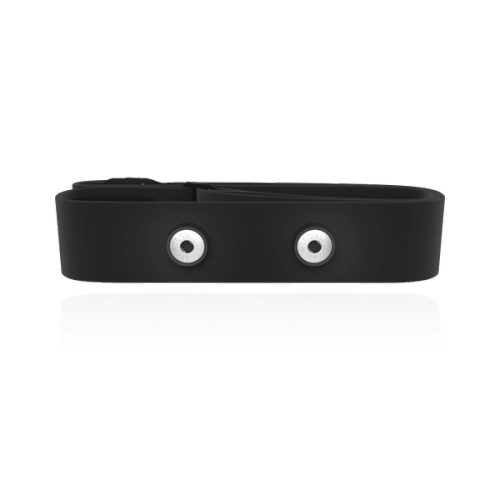
- Polar OwnCode® (5kHz) – coded transmission
Coded heart rate transmission automatically locks in a code to transmit your heart rate to the training computer. The training computer picks up your heart rate from your transmitter only. Coding prevents interference from other training computers.
- Polar OwnZone® – personal heart rate zone
Polar OwnZone® determines your personal heart rate limits for a training session. Depending on the day and time, your physical state may vary, for instance, if you are stressed or tired, or if you are not fully recovered from your latest training session, Polar can determine that information from your heart rate and guide you to your ideal training zone for that moment.
- Number of laps – 50
- HeartTouch – button-free operation of wrist unit
When HeartTouch is on, different training information during training can be accessed without pressing buttons, for instance, when gloves make pressing buttons difficult, by bringing your training computer close to your transmitter.
- Automatic display scroll
Automatic display scroll enables you to alternate between displays automatically during training without a need to remove hands from handle bars. Activating automatic display scroll improves riding safety and comfort.
- Automatic lap recording
With this feature you can set your training computer to take laps based on preset distance, for example, every 1 km/mi.
- Graphical comparison of two values
This feature enables comparison of two values as graphs during training. For example, you can choose a graphical overview of your heart rate and altitude to see how altitude affects the intensity of your training .
- ZonePointer
ZonePointer is a visible and moving symbol on the training computer display indicating whether you are inside the pre-set target zone. This feature helps you to reach the desired intensity/pace/speed/cadence targets.
- User configurable displays
This feature allows you to configure training computer displays to show the information that you need during your training session. Configure the displays either in the training computer or in ProTrainer 5 software.